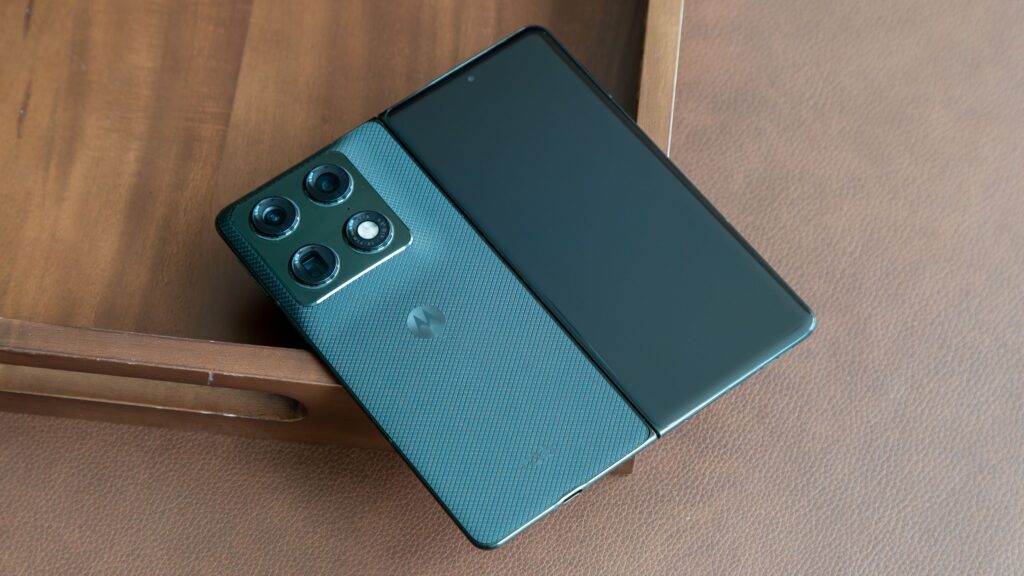
Motorola has a back-tap shortcut that does more than simply open an app. With Quick Launch, a user can trigger a screenshot, start an action, or open selected tools with two taps on the back of the phone.
That small gesture matters because it does not rely on an extra physical button. On larger Motorola devices such as the Razr or Razr Fold, the shortcut can feel especially useful when one-handed use is awkward or when the hand is already occupied.
By default, Quick Launch is assigned to Moto AI. Motorola, however, lets users change it to other actions that fit daily routines more closely, including launching a specific app, recording the screen, or controlling music playback.
How the shortcut works
Quick Launch uses sensors inside the phone, including the accelerometer, to detect motion. The system reads the device movement and matches it to a pattern of two quick taps on the back side of the phone.
When that pattern is recognized, the phone immediately carries out the chosen shortcut. The design keeps the feature responsive even though there is no dedicated button on the back panel.
The tap area sits on the upper third of the back of the device. On the Razr Fold, it is described as being just above the Motorola logo and around the lower part of the camera bump.
Why it stands out on Motorola phones
Similar shortcut ideas exist on some other phones, but Motorola’s setup has a different appeal. iPhone and OnePlus devices are said to offer a physical button that can be remapped, while many Motorola phones do not include that kind of spare button.
That makes Quick Launch more important on Motorola devices because it adds fast access without increasing the number of steps in everyday use. It also matters where the built-in AI key is not easy to repurpose.
For actions people use often, this shortcut can be faster than opening Quick Settings or relying on on-screen gestures. Even a single step saved can make a difference when a function is repeated throughout the day.
More than just a launcher
Motorola gives users a wide set of actions for Quick Launch. The options include Recorder, Open Smart Connect, Moto AI, Play/Pause Music, Take Screenshot, Screen Recorder, Back to Home, Switch to last app, and Open App.
The Open App option makes the shortcut especially flexible because almost any app on the phone can be assigned to it. That allows the feature to adapt to different habits instead of forcing one fixed use case.
One of the most practical choices is Take Screenshot. Normally, a screenshot requires a combination of the volume and power buttons, which can feel awkward and easier to press incorrectly for some users.
With Quick Launch, a screenshot can be taken with just two taps on the back of the phone. After that, the usual screenshot editor and sharing options still appear as they normally would.
Sensitivity and setup
Motorola also includes sensitivity controls to reduce accidental activation. Users can choose Gentle tap, Moderate tap, or Hard tap depending on how they want the feature to respond.
If the phone detects taps too easily, the sensitivity can be raised. If the user wants a lighter trigger, Gentle tap remains the default setting.
Quick Launch can even appear before full configuration is complete. When the back of the phone is tapped with enough force, the device may show a pop-up indicating that the feature has been detected and is ready to be set up.
The full setting is located in Settings under Gestures, then Quick Launch. From there, the Use Quick Launch switch can be enabled, and the Try it out option helps test how strong the tap needs to be for each sensitivity level before tapping Done.
Source: www.androidcentral.com