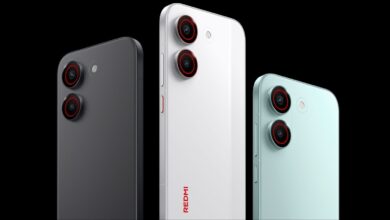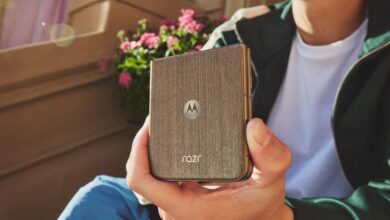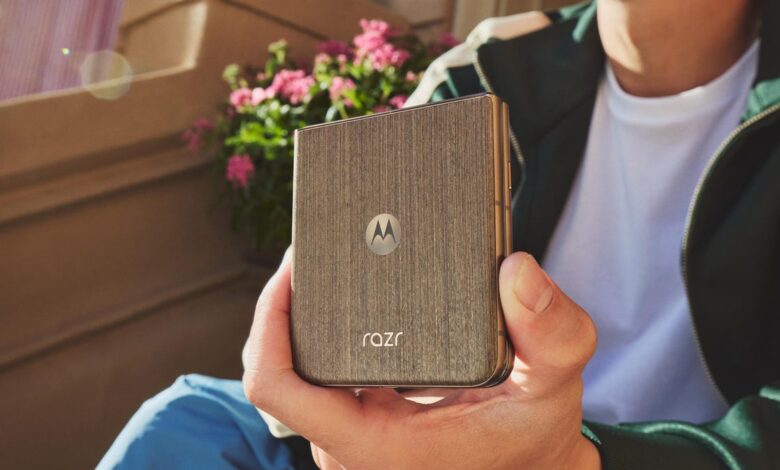
The Motorola Razr 2026 series does not rely on better hardware alone to deliver better photos. A handful of camera settings can quickly change how colors, framing, selfies, portraits, and videos turn out in daily use.
That matters because the Razr line also keeps some of the strongest foldable-specific tools in the market. The external display, dual preview, camcorder mode, and gesture controls give the phone a more flexible shooting workflow than many standard smartphones.
1. Start with the color profile
One of the most important tweaks sits in the color processing options, which can be opened through the sparkle icon at the top of the viewfinder. Motorola offers Natural, Vivid, and Signature Style.
Natural keeps colors closer to reality, while Vivid pushes saturation for a more intense look. Signature Style is the most personalized option, although it requires camera training through photo editing in Google Photos.
For many users, Natural is the safest starting point because it preserves balance without making the image look over-processed. Vivid remains a preference-based choice, especially for those who want stronger color impact straight from the camera.
2. Turn on composition aids
Useful framing tools are available in Camera Settings under Capture assistant. The two standout options are Assistive grid and Leveler.
Assistive grid adds a rule-of-thirds overlay to help place the subject more cleanly, while Leveler keeps the horizon straight. These tools are especially helpful for landscapes, architecture, and portraits that need precise alignment.
3. Make the most of the cover screen
The foldable design gives the Razr a major advantage when framing shots. A rectangular icon in the top-left of the viewfinder activates the external viewfinder, letting subjects see themselves on the cover screen before the shutter fires.
Motorola also includes Camera Cartoon in Camera Settings to keep children engaged during photos. On flip models, No Crop for External Display Preview is worth enabling so the cover-screen preview is not limited to a cropped square.
For users who do not want a full live preview, Instant Review can show a quick image preview on the external display right after the shot is taken.
4. Use dual preview on Razr Fold
The Razr Fold adds another layer of convenience once the phone is open. The top-left icon in the viewfinder can activate a secondary preview on the internal display.
After the photo is captured, the result remains visible on one side while the viewfinder stays active on the other. That setup makes it easier to compare the live scene and the finished image side by side.
5. Switch to the rear camera for selfies
Foldables can also improve selfie quality, and the Razr Fold does this by allowing the rear camera to be used for self-portraits. When the phone is closed, a small person icon in the top-left of the viewfinder enables the rear sensor for selfies.
This approach delivers better image quality than a conventional front camera because it uses the main camera system. Camera Settings also includes Selfie Mirror, which lets users decide whether selfies should be saved as the preview shows them or as a natural mirrored version.
6. Fine-tune portrait and face effects
Portrait mode includes manual control over blur through the ⨍ symbol. The bokeh intensity can be adjusted on a scale from level 1 to 6.
That control matters because overly strong blur can make images look artificial. Razr also offers Portrait beautifier, with options for smoothing, toning, slimming the face, and enlarging the eyes.
7. Choose the right video tools
For most situations, 4K 30fps is the most practical video setting. The phone also supports 8K 30fps, although that option is more than most users need.
Razr Ultra and Razr Plus 2026 support Dolby Vision, but the feature can make colors look too saturated and lighting seem slightly exaggerated. On Razr Fold, the Video Enhancement Engine can improve color, tone, and noise handling with a dedicated camera video button.
Camera Settings also includes Auto Frame Rate for low-light recording, AI Audio with Audio Zoom for focusing microphones on the zoomed area, and Efficient Videos for smaller file sizes.
Camcorder Mode remains one of the series’ most distinctive tools. It can start recording automatically when the phone is folded to 90 degrees, or it can be triggered with a three-second timer.
The Razr 2026 line also adds Rotate to Zoom, which lets users zoom in or out by tilting the phone, while Horizon Lock keeps video steady as the device angle changes.
8. Keep gestures and situational tools ready
Motorola still uses gestures as a fast path to the camera. Quick Capture opens the camera by twisting the phone twice, and users can choose whether that launches the rear camera, selfie camera, or Mirror mode on flip models.
Air Gestures also work for both photos and video. Showing an open palm starts the countdown for a photo, while video controls can begin with an open palm and stop with a fist.
Several situational tools are also worth moving into the main carousel through the pencil icon for quicker access. Those include Action Shot for fast-moving subjects, Group Shot for keeping everyone’s eyes open, Photo Booth for four-frame collages, Active Photos for short clips with audio, and Horizon Lock for movement-heavy scenes or sports.
Among them, Action Shot stands out by raising shutter speed and using AI to keep the subject in focus. Active Photos has one limitation, however, since it must be turned on again each time the camera app is reopened.